
How to install mods on bonelab usually comes down to three things: using the right mod type for your platform, placing files in the correct folder, and launching the game in a way that lets Bonelab recognize new content. If you miss any one of those, mods often “install” fine but never show up in-game.
The good news, Bonelab modding is fairly approachable once you understand the difference between PCVR (Steam) and Meta Quest workflows, plus what a mod file is supposed to look like when it’s installed correctly.
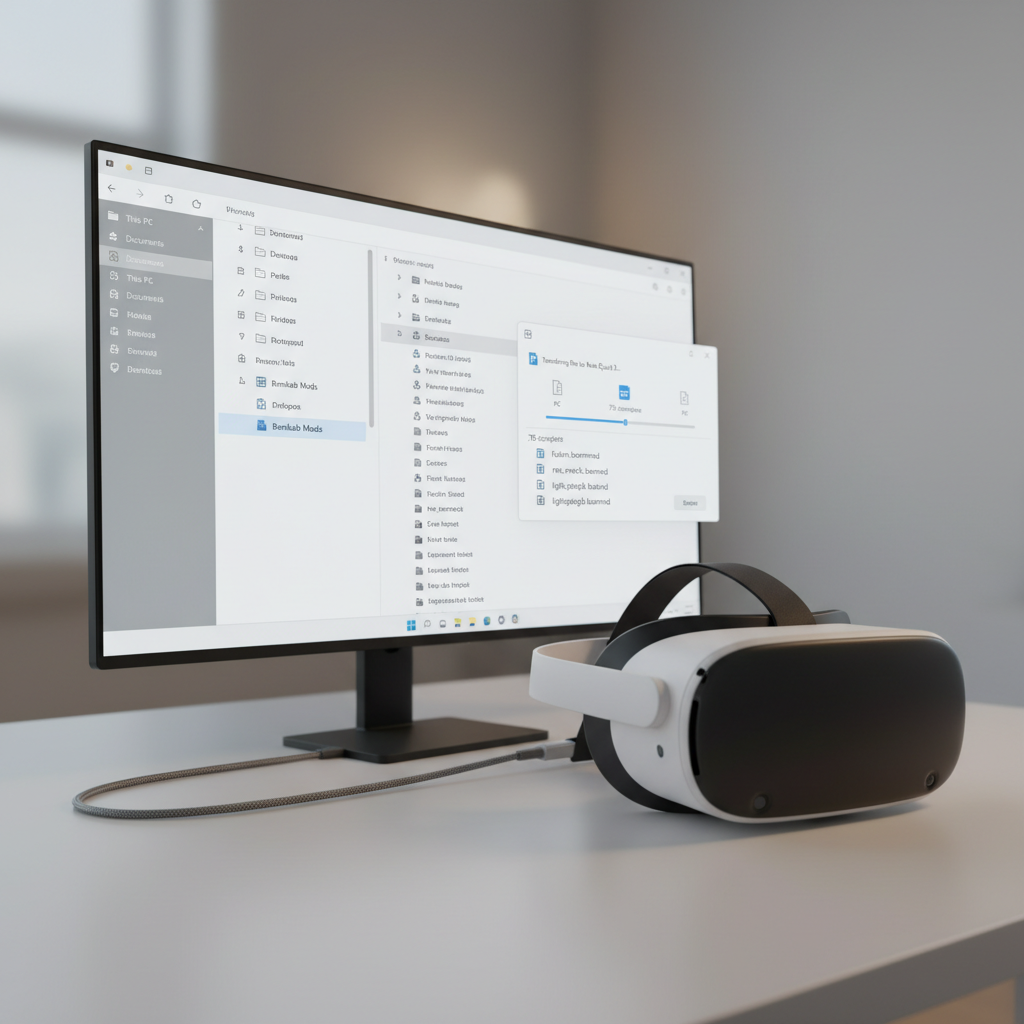
One quick note before we get hands-on: mods can break after game updates, and some mods are simply outdated. If you do everything “right” and it still fails, it’s often a compatibility issue rather than you doing something wrong.
What you need before installing Bonelab mods
Before you start moving files around, confirm two basics: your platform and your mod format. This saves you from installing the right mod in the wrong way.
- Your platform: PCVR (Steam) or Meta Quest (standalone).
- Storage access: On PC you have direct folders; on Quest you typically use a USB connection and a file tool.
- Mod format: Many mods are packaged as folders or archives that contain a mod folder, not a single file you can “open.”
- Patience for restarts: A full game relaunch is often required for new mods to appear.
According to Meta (Meta Quest Support), using a high-quality USB cable and allowing file access prompts can affect whether your computer can reliably transfer files to a Quest headset.
Understand Bonelab mod types (and why some never show up)
A lot of frustration comes from expecting every download to behave the same. In practice, Bonelab mods tend to fall into a few buckets, and the install steps vary a bit.
Common mod categories you’ll run into
- Avatar mods: New player bodies/characters, usually show up in avatar selection areas.
- Maps/levels: Play spaces that appear in level selection or via mod kiosks depending on version.
- Items/weapons: Spawnable objects, typically accessed through the spawn menu once loaded.
- Code mods / advanced mods: These can require extra frameworks on PC, and are often not supported on Quest in the same way.
If you’re researching how to install mods on bonelab because “nothing appears,” check whether the mod is meant for your platform. Many creators label mods as PC-only, Quest-ready, or “untested.” That label matters.
How to install mods on Bonelab (PCVR / Steam) — the reliable method
On PC, your job is simple: put each mod’s folder in the correct mods directory, keep the folder structure intact, then restart the game.
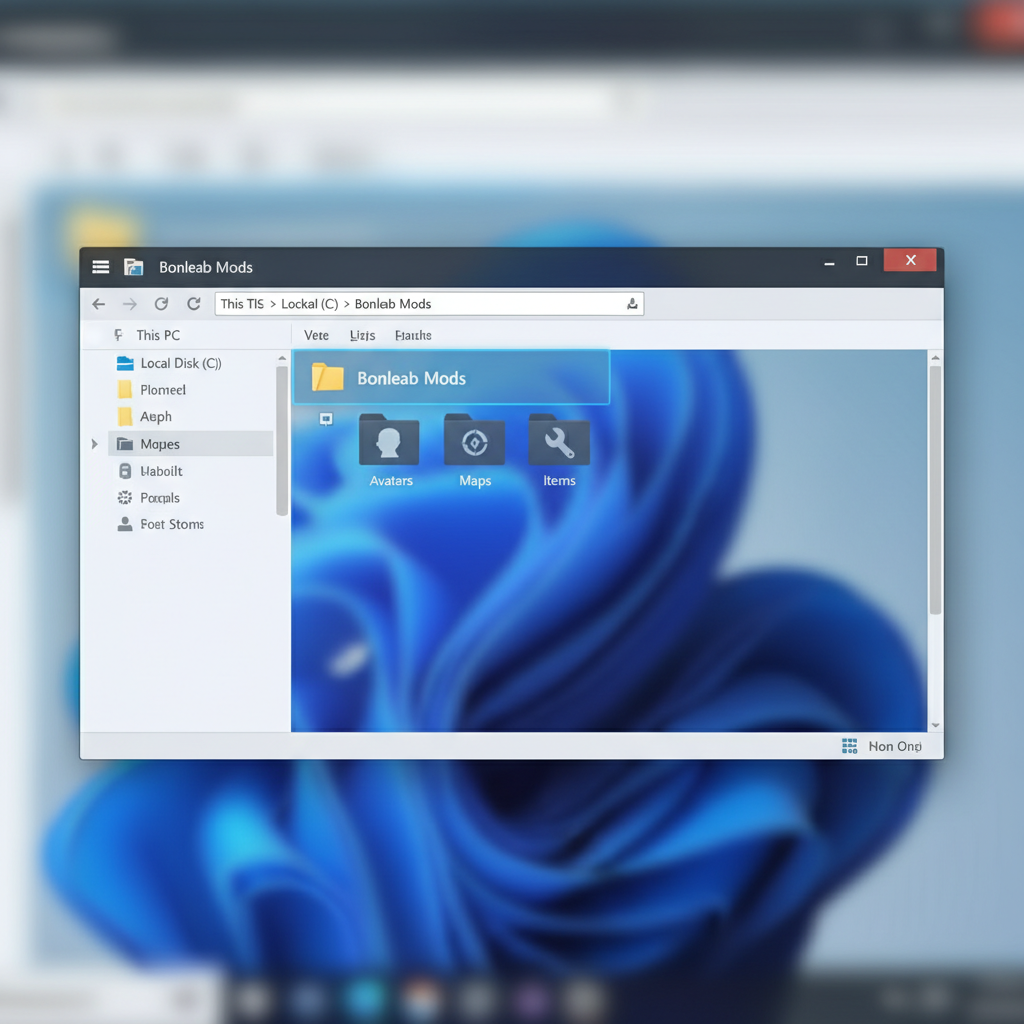
Step-by-step (PC)
- Download the mod from a reputable source, then extract it if it’s a .zip/.rar/.7z.
- Inspect the extracted result: you want a single mod folder, not a folder that contains another folder with the same name (a common mistake).
- Locate your Bonelab mods folder: the exact path can vary by install method and game version, so use the folder/search hints below.
- Copy the mod folder into Bonelab’s Mods directory.
- Fully restart Bonelab (quit to desktop, relaunch), then check the appropriate in-game menu for that mod type.
How to find the right folder without guessing
If you don’t see an obvious Mods folder, don’t brute-force random directories. Instead:
- Search your PC for “Bonelab” then look for a folder named Mods inside.
- Check your user profile folders (many games store mod content under AppData/LocalLow-style locations).
- Use Steam’s “Browse local files” as a starting point, then look for a data or user content area from there.
Once you find the correct directory once, save it in File Explorer “Quick access” so future installs take seconds.
How to install mods on Bonelab (Meta Quest standalone)
Quest modding is usually where people get stuck because you’re juggling a headset, file permissions, and a folder path that’s less visible than on PC. The core idea stays the same: correct folder, correct structure, then restart.
Typical Quest workflow
- Connect Quest to your PC with a data-capable USB cable.
- Put on the headset and accept prompts for USB connection/file access (if prompted).
- Open Quest storage on your PC (or use a file manager approach if that’s your usual setup).
- Copy the mod folder into Bonelab’s mods directory on the headset storage.
- Restart Bonelab and check for the content in the right in-game place.
According to Meta (Meta Quest Support), permission prompts and USB connection modes can affect file transfer visibility, so if your Quest doesn’t appear on your PC, start by re-plugging and re-approving access on-headset.
Quick self-check: did you install the mod correctly?
Use this checklist when mods “don’t show up,” because most failures are basic structure issues rather than complicated problems.
- Folder nesting check: You copied ModName/, not ModName/ModName/.
- Wrong platform check: The mod is labeled Quest-compatible if you’re on Quest.
- Wrong mod type check: You’re looking in the right in-game menu (avatar vs item vs map).
- Restart check: You fully quit and relaunched Bonelab, not just returned to the main menu.
- Conflicting mod check: You didn’t install multiple versions of the same mod at once.
If you’re still unsure, temporarily remove all mods except one known-good mod, then test. This “one mod at a time” approach feels slow, but it’s the fastest way to pinpoint what’s breaking the load.
Troubleshooting common Bonelab mod problems
When people search how to install mods on bonelab, it’s often because they hit one of these issues. Here’s what typically works without turning it into a weekend project.
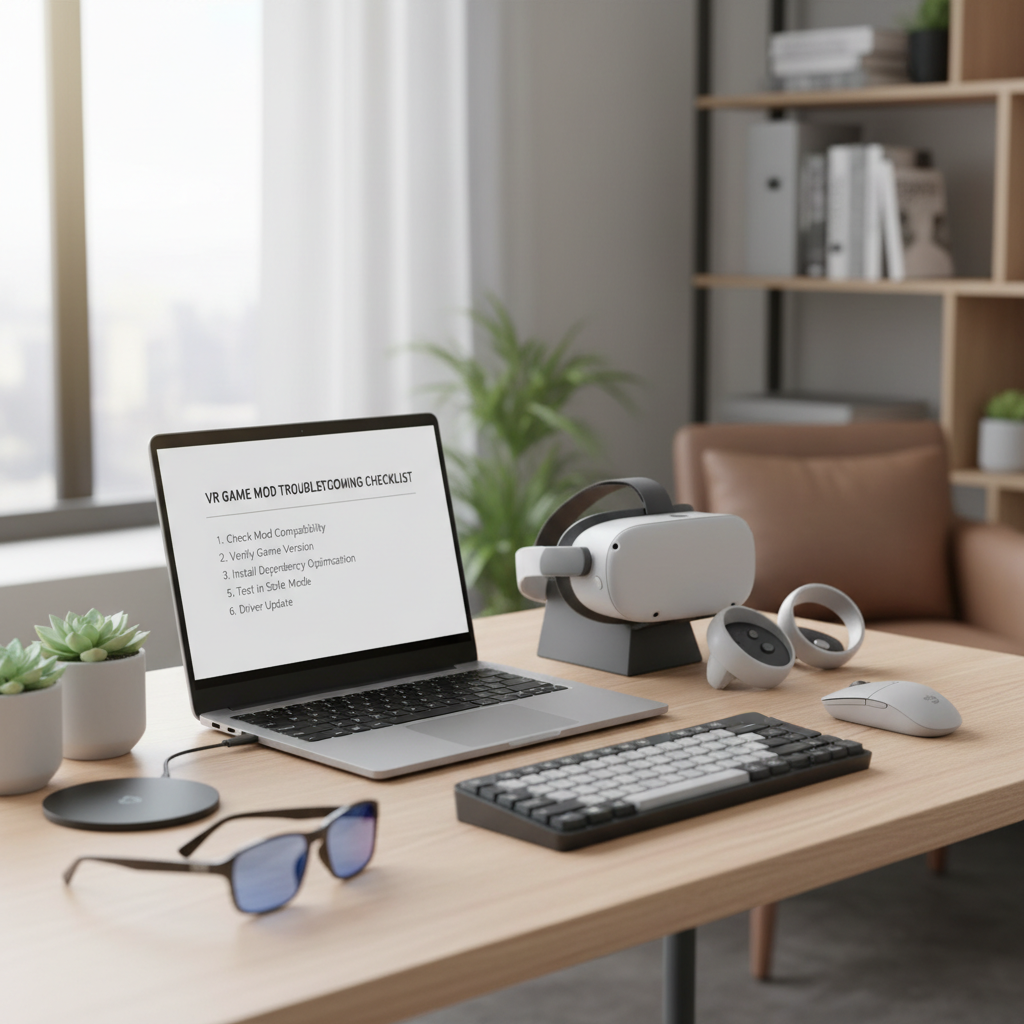
Problem: Mod installed but not visible in-game
- Double-check folder nesting and re-copy the mod.
- Verify the mod is for your Bonelab version (updates can break older releases).
- Confirm you’re checking the correct in-game location for that mod type.
Problem: Game crashes on launch after installing a mod
- Remove the last mod you added, then relaunch.
- Add mods back one by one to identify the problematic file.
- If it’s an advanced/code mod, confirm any required frameworks are installed (PC) and that you followed that mod’s instructions.
Problem: Quest won’t show up for file transfer
- Try a different USB cable (many charge-only cables cause this).
- Switch USB ports and re-approve file access inside the headset.
- Restart the headset, then reconnect.
PC vs Quest mod install: what’s different (quick table)
If you want a fast mental model, this is it. Same concept, different friction points.
| Topic | PCVR (Steam) | Meta Quest (Standalone) |
|---|---|---|
| File access | Direct access to folders | USB transfer + permissions |
| Common failure | Wrong folder path or nested folders | Transfer not visible or wrong directory |
| Advanced mods | More options, sometimes needs frameworks | Often limited or incompatible |
| Best practice | Install a few, test, then add more | Keep mod list smaller, verify each one |
Key takeaways (so you don’t overthink it)
- Correct folder structure matters more than anything else, avoid double-nesting.
- Platform compatibility explains a lot of “installed but missing” reports.
- Restarting the game is not optional in many cases.
- Update cycles can break mods, if a mod is old, expect troubleshooting.
Conclusion: a simple install routine you can repeat
If your goal is to learn how to install mods on bonelab without getting stuck in forum rabbit holes, stick to a repeatable routine: download from a reputable source, extract once, confirm the folder structure, place it in the correct Mods directory, then do a clean restart. When something fails, remove recent mods and re-test one at a time.
If you want a low-drama setup, keep a small “known good” mod set you trust, then experiment with new mods in batches. That way, when a mod breaks after an update, you’re not sorting through 40 installs at once.
Next action: pick one mod you really want, install just that, confirm it appears in-game, then add the next. It’s slower for 10 minutes, faster for the rest of your month.
If you’re still stuck, tell me whether you’re on PCVR or Quest, and what you installed (avatar, map, item, or code mod). With that, it’s usually possible to narrow the issue to a folder path, a permissions step, or a mod that simply isn’t compatible.