
Best dns servers for gaming is really about one thing: getting faster, more consistent DNS lookups so your game finds the right server quickly and your connection feels steadier when it matters.
If you mostly play online shooters, battle royale, or ranked modes, you already know the pain, you can have “good internet” and still get weird delays, slow matchmaking, or random rubber-banding. DNS won’t fix bad routing or Wi‑Fi interference, but it can remove a small, annoying layer of latency and instability that shows up in real sessions.
This guide keeps it practical, which DNS providers tend to work well in the US, how to test them the right way, and when changing DNS is basically a distraction so you can focus on what actually lowers ping.

What DNS can (and cannot) do for gaming ping
DNS is the phonebook for the internet, it translates a game service domain into an IP address. In gaming, that usually affects how fast you connect to services, not the raw in-match ping once packets flow.
- It can help: faster initial connections, quicker matchmaking service lookups, fewer “stuck connecting” moments, sometimes better CDN selection for updates.
- It usually cannot: magically reduce your base ping to the game server if your ISP path is long or congested.
- Where people feel it most: when DNS from the ISP is slow, overloaded, or intermittently failing, which creates tiny stalls that feel like instability.
According to Cloudflare, a big part of perceived speed comes from reducing DNS resolution time and improving reliability, which matters most when your device makes lots of small requests.
Quick picks: popular DNS servers gamers in the US often try
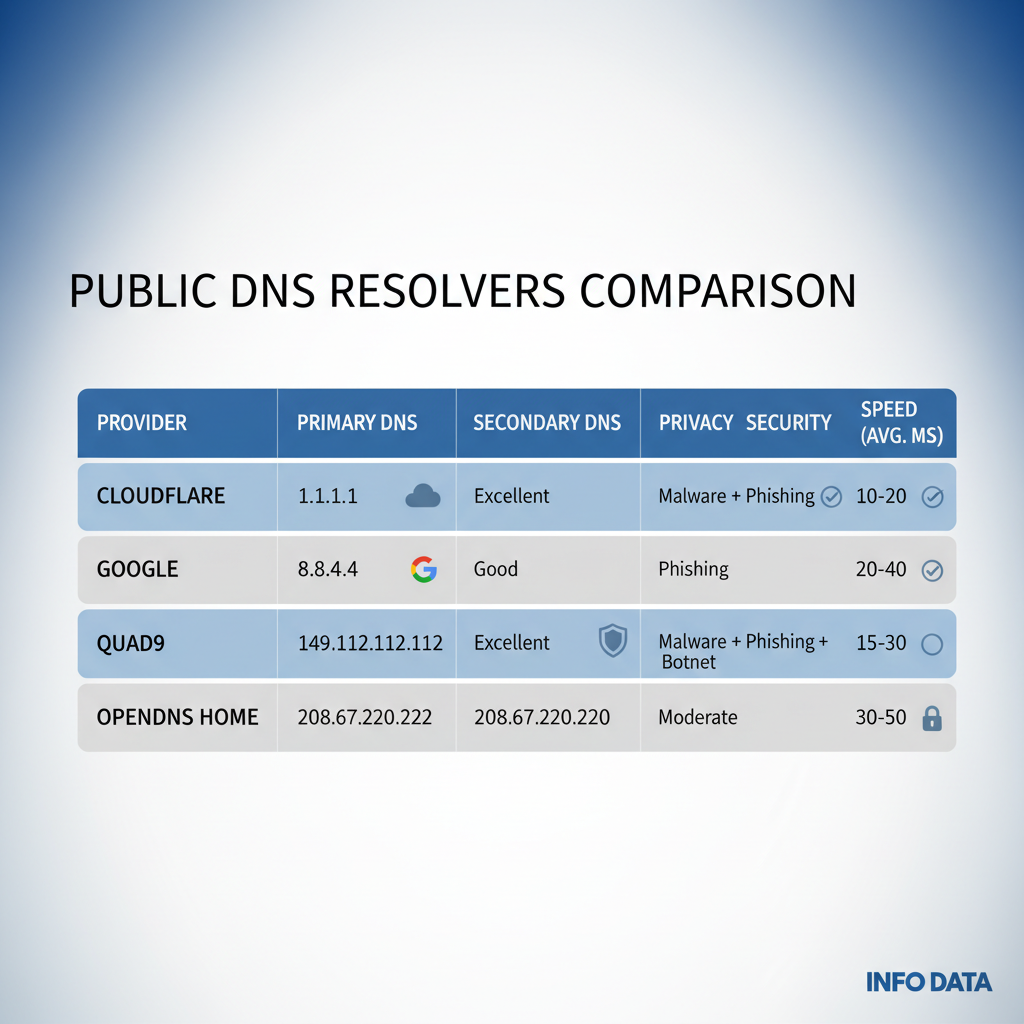
There is no universal “best” resolver for every city and every ISP. The right move is to start with reputable public DNS options, then test from your exact network. Here are the common candidates gamers compare.
| Provider | Primary DNS | Secondary DNS | Why gamers try it | Notes |
|---|---|---|---|---|
| Cloudflare | 1.1.1.1 | 1.0.0.1 | Strong latency focus, widely available | Good baseline for testing |
| Google Public DNS | 8.8.8.8 | 8.8.4.4 | Very reliable, consistent globally | Often “just works” |
| Quad9 | 9.9.9.9 | 149.112.112.112 | Security-focused blocking for known bad domains | May block some sketchy endpoints |
| OpenDNS (Cisco) | 208.67.222.222 | 208.67.220.220 | Stable, optional filtering features | Account features vary |
For most players, the “best dns servers for gaming” shortlist starts with Cloudflare and Google, then you compare against your ISP default to see if you actually gain anything.
Why your ping feels bad even with “good” DNS
This is where expectations get people. Slow DNS can make the start of a session feel sluggish, but low ping in matches depends more on routing and local network quality.
- ISP routing and peering: if your ISP takes a long route to the game region, DNS changes won’t rewrite that path.
- Wi‑Fi interference: crowded apartments and weak router placement create packet loss, which feels like lag even at low ping.
- Bufferbloat: uploads (cloud backups, video calls) can inflate latency; your scoreboard ping might not show the spikes clearly.
- Wrong region selection: auto region picks can be off, so you connect “fast” but to the wrong place.
According to FCC consumer guidance on broadband performance, real-world speed and responsiveness can vary by congestion and network conditions, not just your plan’s advertised numbers.
Self-check: are you likely to benefit from switching DNS?
Use this quick checklist before you spend an hour tweaking settings.
- You might benefit if matchmaking takes a long time, store pages load slowly, or you get intermittent “can’t connect” errors that fix themselves on retry.
- You might not notice much if your main issue is high in-game ping to a specific region, or lag spikes when someone starts streaming in your home.
- DNS is worth testing if your ISP DNS has occasional timeouts, which you can see as “server can’t be found” moments outside games too.
- Prioritize Wi‑Fi and bufferbloat if your ping jumps during uploads or when multiple devices get active.
If you want a simple rule, DNS helps “getting connected” feel cleaner, while stable low latency needs a broader network tune-up.
How to test DNS for gaming (without fooling yourself)
Testing DNS is easy to do badly. A single ping test after changing settings tells you almost nothing, because DNS doesn’t change the physical distance to the server.
1) Measure DNS response time
- On Windows, you can use nslookup against a few domains your games use, and compare response times.
- On macOS/Linux, tools like dig help you see query time.
- Dedicated utilities like GRC’s DNS Benchmark are popular because they compare multiple resolvers on your network.
2) Measure stability, not just speed
- Run tests at different times, peak evening hours matter.
- Look for timeouts or big swings, a “fast average” with occasional stalls feels worse in real play.
3) Keep your game test honest
- Test the same game, same region, same time window.
- Restart the game client after DNS changes, and flush DNS cache if you know how, otherwise cached results can hide differences.
According to Microsoft documentation, Windows uses a DNS client cache to speed up repeated lookups, which is great for normal use but can confuse quick A/B testing.

Setup steps: change DNS on PC, console, or router
If you want the change to apply everywhere, the router is usually the cleanest place. If you only care about one device, set it locally so you can roll back fast.
Option A: Set DNS on your router (recommended for most homes)
- Log into the router admin page, find Internet or WAN settings, locate DNS fields.
- Enter the primary and secondary addresses, save, reboot if required.
- Verify from a device that DNS actually changed, some ISPs override router DNS on certain gateways.
Option B: Set DNS on Windows
- Network settings → adapter properties → IPv4 DNS, add your chosen resolver.
- Keep a note of your previous settings so rollback stays easy.
Option C: Set DNS on PlayStation / Xbox
- Go to network setup, choose manual DNS, enter the two addresses.
- If you use party chat, test voice connectivity after changing, it’s rare but worth checking.
Key point: if your router supports it, consider DNS over HTTPS or DNS over TLS for privacy, but don’t assume it improves latency, encryption can be neutral or slightly slower depending on hardware and implementation.
Common mistakes and “low ping” myths
- Myth: DNS change always lowers ping. Many times it only changes how fast you resolve names, not the game path.
- Setting DNS on the wrong device. If your console uses automatic settings, changing DNS on your PC won’t help it.
- Ignoring router placement. A better DNS won’t fix a weak 2.4 GHz signal through two walls.
- Chasing exotic DNS lists. Random “gaming DNS” IPs from forums can be unstable or unsafe; stick to reputable providers.
- Not controlling for cache. If you don’t restart clients or account for caching, your test results can look better than reality.
If you’re choosing between two resolvers that both feel fine, pick the one that stays consistent during peak hours, that’s where “smooth” comes from.
When to go beyond DNS (and when to get help)
If your goal is genuinely lower in-game latency, these tend to move the needle more than DNS changes.
- Use Ethernet for ranked play when possible, it removes a huge source of packet loss and jitter.
- Address bufferbloat with router QoS or Smart Queue Management, especially if you share internet with others.
- Pick the right region manually in-game when the auto choice seems off.
- Talk to your ISP if you see consistent evening congestion or routing issues to specific game networks, they may need to escalate peering or line quality.
If you suspect line issues, frequent disconnects, high packet loss, modem signal warnings, it may be worth consulting your ISP support or a local network professional, since the fix can be physical wiring, modem firmware, or neighborhood congestion.
Conclusion: a practical way to choose the best DNS for gaming
The best dns servers for gaming are the ones that resolve fast and stay stable on your ISP, in your area, during your play hours. Cloudflare and Google are solid starting points, but the real win comes from testing and keeping the change that reduces timeouts and slow lookups without creating new quirks.
- Action step 1: Test your ISP DNS vs Cloudflare (1.1.1.1) and Google (8.8.8.8) over a few evenings.
- Action step 2: If ping spikes persist, shift focus to Ethernet, QoS, and Wi‑Fi interference, DNS is probably not the bottleneck.
Key takeaways
- DNS impacts connection speed and reliability more than raw match ping.
- Reputable public DNS options are the safest place to start.
- Measure consistency, not only the best single result.
- For real latency gains, fix Wi‑Fi, bufferbloat, and routing problems.
FAQ
What are the best DNS servers for gaming in the US right now?
Most players start with Cloudflare (1.1.1.1) or Google Public DNS (8.8.8.8) because they’re widely available and typically consistent. The “best” depends on your location and ISP, so a quick benchmark matters.
Will changing DNS lower my ping in Valorant, Warzone, or Fortnite?
It might reduce connection and matchmaking delays, but it usually won’t drop your base in-match ping by much. If your issue is routing or Wi‑Fi jitter, you’ll feel bigger improvements from Ethernet or QoS tweaks.
Is Cloudflare DNS (1.1.1.1) good for gaming?
Often yes as a baseline, because it’s designed for fast resolution and reliability. Still, it’s worth comparing against your ISP DNS and Google on the same nights you normally play.
Should I set DNS on my router or on my console/PC?
Router-level changes cover every device, which is convenient. Device-level changes are easier to A/B test and roll back, so if you’re troubleshooting, starting on one device is usually cleaner.
Can DNS settings improve download speed for game updates?
Sometimes a little, mostly by making initial connections and CDN lookups smoother, but your ISP speed and the game provider’s servers matter more. If downloads crawl, check wired vs Wi‑Fi and background traffic first.
Is using a “gaming DNS” from a random website safe?
It can be risky, because you’re trusting that resolver with your DNS traffic and relying on its uptime. In many cases it’s safer to stick with well-known public DNS providers with clear policies and support documentation.
What if my ISP blocks me from using custom DNS?
Some ISP-provided gateways try to force DNS. You can test by checking what resolver your device actually uses after the change; if it keeps reverting, you may need to use your own router or ask the ISP about bridge mode options.
If you’re tweaking settings every night and still feeling lag, you may want a more “set and forget” approach, lock in a reputable DNS on the router, then spend your effort where it pays off more, Ethernet for the main gaming device and basic QoS to keep uploads from wrecking latency.