
How to mod beat saber quest 3 usually comes down to one decision: are you on the standalone Quest version, or playing the PCVR (Steam/Oculus PC) version through Link/Air Link. People get stuck because the steps, tools, and “what can break” differ a lot between those two paths, and mixing guides often leads to boot loops, missing songs, or mods that silently stop working.
Modding can add custom songs, quality-of-life tweaks, and accessibility options, but it also introduces tradeoffs: updates can break mods, multiplayer can get messy, and you may need to repeat parts of the process after reinstalling. If you want the fun parts without the headaches, you need a clean checklist and a plan for updates.
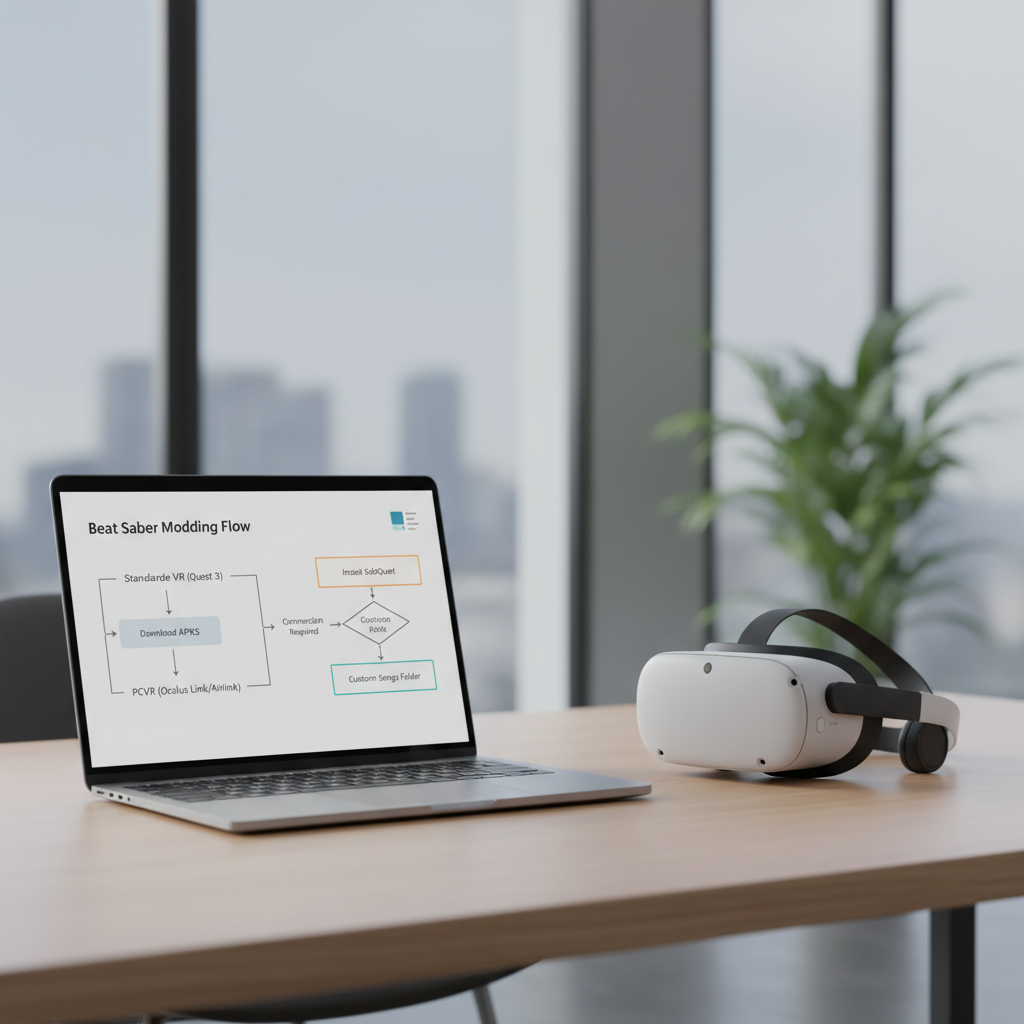
This guide focuses on practical, current-leaning habits: how to choose the right route, how to prepare your headset and files so you can roll back, and what to do when a Beat Saber update blows up your mod list. I’ll also call out common misconceptions, because “just click this installer” is how most people end up restarting from scratch.
Pick your modding route: Standalone Quest vs PCVR
Before you touch anything, confirm which Beat Saber you actually play most days. The modding approach follows the platform, not the headset.
- Standalone (native Quest app): Beat Saber runs on the Quest 3 itself. You’ll typically use Quest-focused mod installers and manage files on-device. This is convenient, but updates can be disruptive.
- PCVR (Link/Air Link + Steam or Oculus PC): Beat Saber runs on your PC and streams to Quest 3. Modding looks like normal PC Beat Saber modding, which is often more mature and easier to recover from.
If you’re not sure, open the Quest library: if you launch Beat Saber without starting Link/Air Link, you’re on standalone. If you launch it from SteamVR or the Oculus PC app, you’re on PCVR.
Quick self-check: are you a good candidate for mods right now?
Modding isn’t “hard,” but it is picky. This quick check saves time.
- You’re okay with pausing auto-updates or waiting before updating Beat Saber.
- You can connect Quest 3 to a computer for file access (even if you do most steps on-device).
- You’re willing to troubleshoot: reinstalling, clearing cache, or restoring a backup if needed.
- You accept that some mods may stop working after a game patch.
If any of those are a hard “no,” consider sticking to unmodded gameplay, or choose the PCVR route where recovery is usually simpler.
What you need before you start (and why it matters)
Most failed attempts happen because people skip preparation, then can’t undo changes cleanly.
Baseline checklist
- Charging and storage: keep your Quest 3 above ~50% battery and leave free space, custom songs can add up fast.
- USB-C data cable (recommended): wireless file workflows exist, but a stable cable cuts down random disconnect issues.
- Backups: note your Beat Saber version, and back up key folders if your method provides it.
According to Meta, Developer Mode is required for certain developer features and debugging workflows on Quest devices, and many modding toolchains rely on that type of access. That doesn’t mean “everything is safe,” it means you should treat it like a power-user feature and proceed carefully.
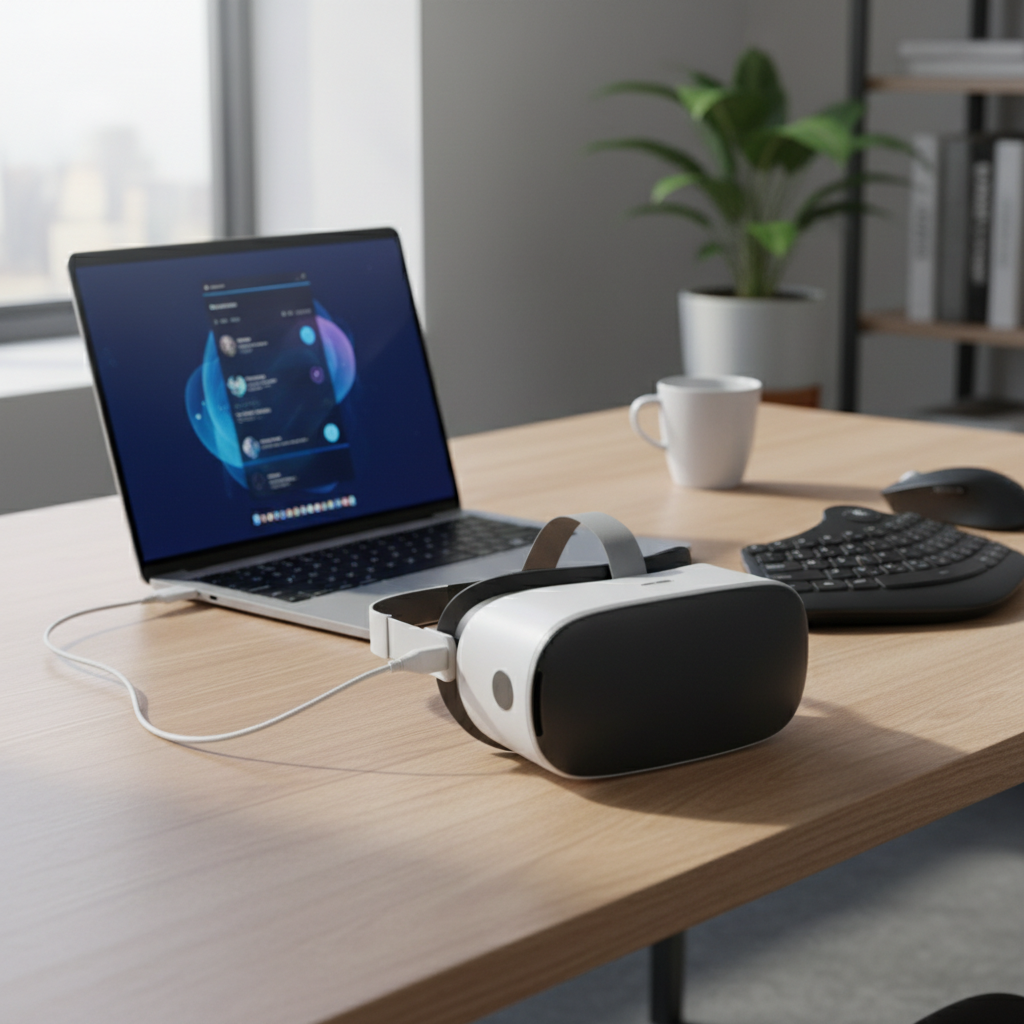
One more reality check: modding may affect online features. In many cases, it’s smarter to keep a “clean” unmodded install available, especially if you care about official multiplayer or quick updates.
How to mod Beat Saber on Quest 3 (standalone): the practical flow
For standalone, the safest mindset is: get one stable mod setup working, then freeze your Beat Saber version until the mod community catches up with updates.
Step-by-step (high-level, tool-agnostic)
- Confirm your Beat Saber build: note the version number in-game. Many mod loaders target specific versions.
- Enable required device access: most workflows involve Developer Mode plus USB debugging permission prompts.
- Use a reputable Quest mod manager: follow the tool’s instructions to patch/install the mod loader for your Beat Saber version.
- Install only a few core mods first: test launch, then add custom songs/content management.
- Validate in-game: check that Beat Saber boots, menus load, and songs scan without freezing.
Keep it boring at the start. If you install ten mods at once and something breaks, you won’t know which one caused the problem.
PCVR modding on Quest 3 (Steam/Oculus PC): often easier to maintain
If “how to mod beat saber quest 3” is really about getting custom songs with fewer headset-side hoops, PCVR is often the calmer path. You mod the Windows install and the Quest 3 is basically your display and controllers.
Typical PCVR flow
- Install Beat Saber on Steam (or Oculus PC app), then run it once unmodded.
- Use a well-known PC mod manager for Beat Saber, and target the correct install folder.
- Add core dependencies first, then QoL mods, then custom song tools.
- Test after each batch, especially after graphics/performance mods.
According to Valve, Steam’s integrity/verification tools can help restore or validate game files. That’s a practical advantage on PCVR: if you break something, you can often repair the installation without factory-reset-level pain.
Update management: how to avoid “mods broke overnight”
Most modding frustration isn’t the install, it’s updates. Beat Saber patches arrive, mods lag behind, and suddenly your game crashes on launch.
A simple update strategy that works in real life
- Turn off auto-update for Beat Saber when you have a working mod setup.
- Before updating, check whether your mod loader and must-have mods support the new version.
- Keep a note of your last working version, plus which mods were installed.
- When you do update, expect to re-patch or reinstall the loader.
There’s no magic setting that makes mods “future-proof.” The best habit is treating updates like a deliberate maintenance window, not something that happens in the background.
Troubleshooting table: common problems and fixes
If your setup goes sideways, don’t random-click. Identify the symptom, then do the smallest fix that could work.
| Symptom | Likely cause | What to try |
|---|---|---|
| Beat Saber crashes at launch | Version mismatch between game and mod loader | Confirm game version, reinstall/patch loader for that version, remove recently added mods |
| Black screen or infinite loading | Corrupt cache or incompatible mod | Clear app cache (where applicable), disable mods, then re-add one by one |
| Custom songs not showing | Song manager not installed or songs in wrong folder | Verify the custom song tool is active, rescan songs, confirm directory permissions |
| Multiplayer issues | Modded state conflicts with online services | Switch to a clean install for multiplayer, or disable mods temporarily |
| Tracking feels “off” after changes | Not directly mod-related, but settings can change | Recheck room boundary, controller settings, refresh lighting conditions |
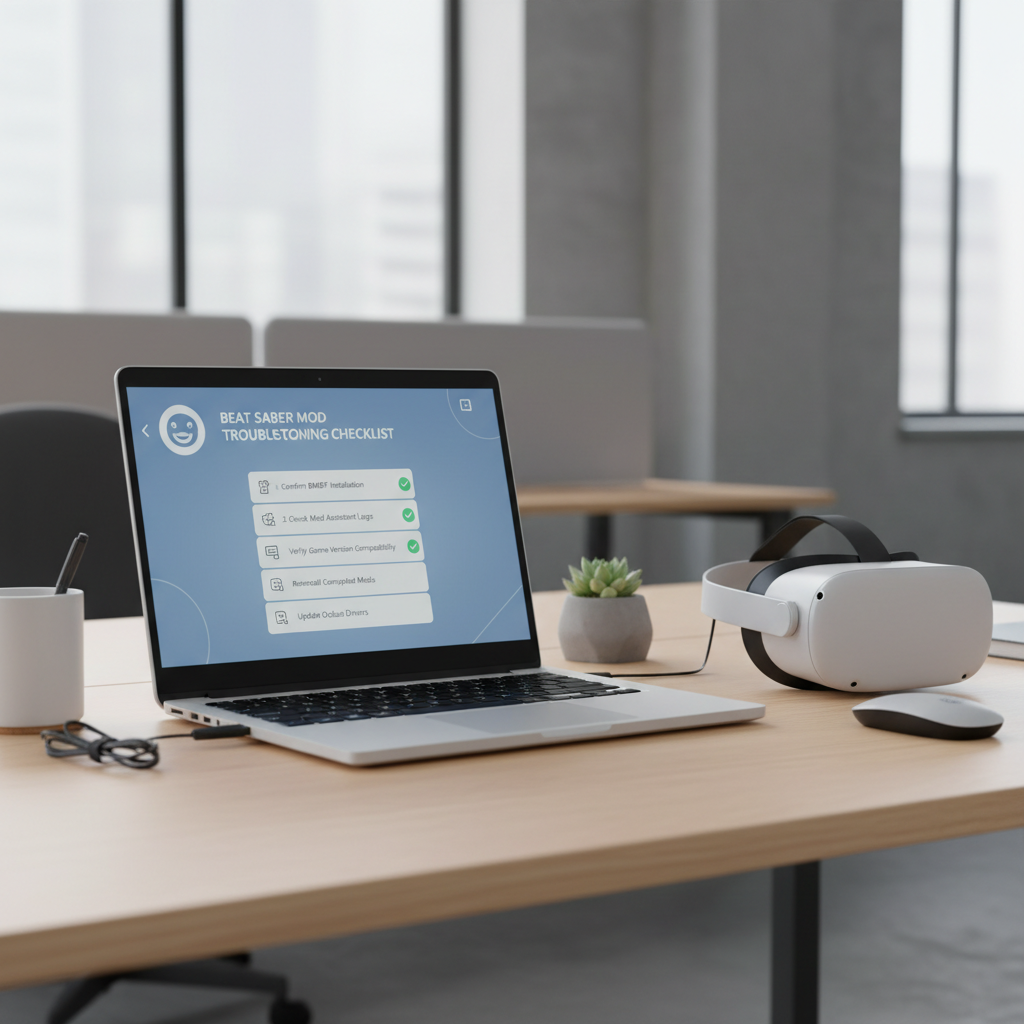
If you feel tempted to factory reset immediately, pause. In many cases, uninstalling Beat Saber, reinstalling, then applying the mod loader again for the correct version fixes the bulk of “won’t launch” scenarios.
Safety, account, and comfort notes (the part people skip)
Modding sits in a gray zone: it can violate terms for some services, and it can create security risk if you install untrusted files. Stick to reputable tools and communities, avoid random downloads, and don’t grant device permissions to apps you don’t recognize.
- Account risk: enforcement can vary by platform and time, so assume there is some risk and make choices you can live with.
- Performance: too many mods can increase load times and stutter, especially on standalone.
- Comfort: if mods change visuals or speed, nausea can happen; if you’re sensitive, dial settings back and consider taking breaks.
If you’re setting this up for a kid or a shared household headset, it’s usually worth keeping a clean profile or a clean install so anyone can hop in without troubleshooting.
Key takeaways (so you don’t have to reread)
- Decide standalone vs PCVR first, most confusion comes from mixing steps.
- Start with a minimal mod set, test, then expand.
- Freeze updates when your setup works, and treat upgrades like planned maintenance.
- When things break, check version mismatch before doing drastic resets.
Conclusion: a clean, repeatable setup beats a “perfect” one
How to mod beat saber quest 3 gets much easier once you stop chasing every new mod and instead build a stable baseline you can reproduce. Pick your route, do the prep, install in small steps, and be intentional about updates, that’s what keeps modding fun instead of fragile.
If you want one action to take today, make it this: write down your current Beat Saber version and turn off auto-updates before you start, then test after each change so you always know what worked.