how to play roblox in vr 2026 usually comes down to three things that trip people up: whether your headset is supported, whether you’re launching the right Roblox experience, and whether your PC and drivers are actually VR-ready.
If you’ve ever put on a headset, hit “Play,” and ended up staring at a flat screen or a jittery view, you’re not alone. Roblox VR can feel inconsistent because not every game supports VR, and the setup differs a bit depending on Quest vs PC VR.
This guide keeps it practical, what to check, what to install, and what to do when it “should work” but doesn’t. You’ll also get a quick compatibility table and a short troubleshooting flow that saves time.
What “Roblox in VR” means in 2026 (and what it doesn’t)
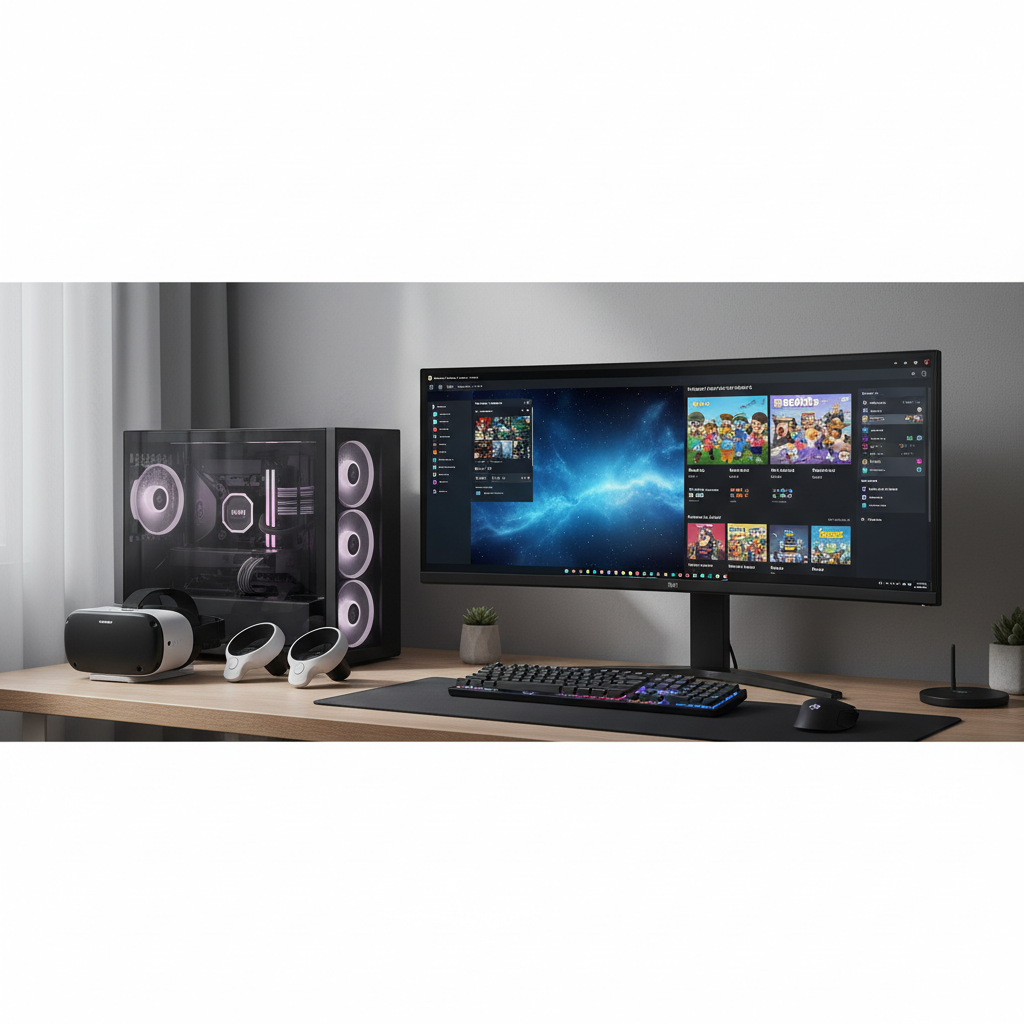
In 2026, playing Roblox in VR still typically means one of two routes: PC VR (headset connected to a gaming PC) or Quest using PC streaming. The key limitation stays the same: VR support is experience-by-experience, not a universal switch for every Roblox title.
Two common misunderstandings cause most frustration:
- “Roblox is VR” — Roblox has VR-capable experiences, but many popular games remain flat-screen only.
- “Quest runs it standalone” — many setups still rely on a PC to deliver VR through a link/stream workflow, depending on what’s supported and how the experience is built.
According to Roblox (official support and developer documentation), VR behavior can vary across experiences and hardware, and you’ll often need to follow platform-specific steps rather than expecting one universal setting.
Headset + PC requirements: a realistic compatibility snapshot
Before you chase settings, decide which route you’re actually using. A lot of “it doesn’t work” cases are really “I’m on the wrong route for my gear.”
Quick compatibility table
| Setup | What you need | What it’s good for | Where people get stuck |
|---|---|---|---|
| PC VR (SteamVR/OpenXR) | VR-ready Windows PC, compatible headset, updated GPU drivers | Most consistent Roblox VR path | OpenXR runtime mismatch, outdated drivers |
| Meta Quest + PC (Link/Air Link) | Quest headset, PC, USB-C cable or strong Wi‑Fi | Wireless convenience, easy room-scale | Wi‑Fi latency, router placement, bitrate too high |
| Quest + PC (Virtual Desktop) | Quest, PC, Virtual Desktop app, strong Wi‑Fi | Flexible streaming controls | Codec/bitrate tuning, firewall/network issues |
For PC specs, aim for a modern midrange GPU and CPU with enough headroom to hold stable frame rates; VR is less forgiving than flat gaming. According to Valve (SteamVR), keeping software and drivers updated is part of maintaining stable VR performance, which tracks with what most users see in practice.
Before you start: a 3-minute self-check (saves a lot of time)
If you want the shortest path to how to play roblox in vr 2026, run this checklist first. If any item is “no,” fix it before you troubleshoot deeper.
- Headset works in other VR apps (a basic SteamVR home scene or headset demo loads fine).
- GPU drivers updated (NVIDIA/AMD/Intel), then restart.
- Windows updates installed, especially graphics and optional driver updates.
- Roblox experience supports VR (the game page or community notes mention VR support).
- Correct launch path: you’re launching Roblox after your VR runtime is ready (SteamVR/OpenXR environment active).
One more honest check: if your Wi‑Fi is shared, crowded, or your PC is on a weak connection, VR streaming can feel “broken” when it’s really just unstable network conditions.
Step-by-step: Play Roblox in VR on a PC VR headset
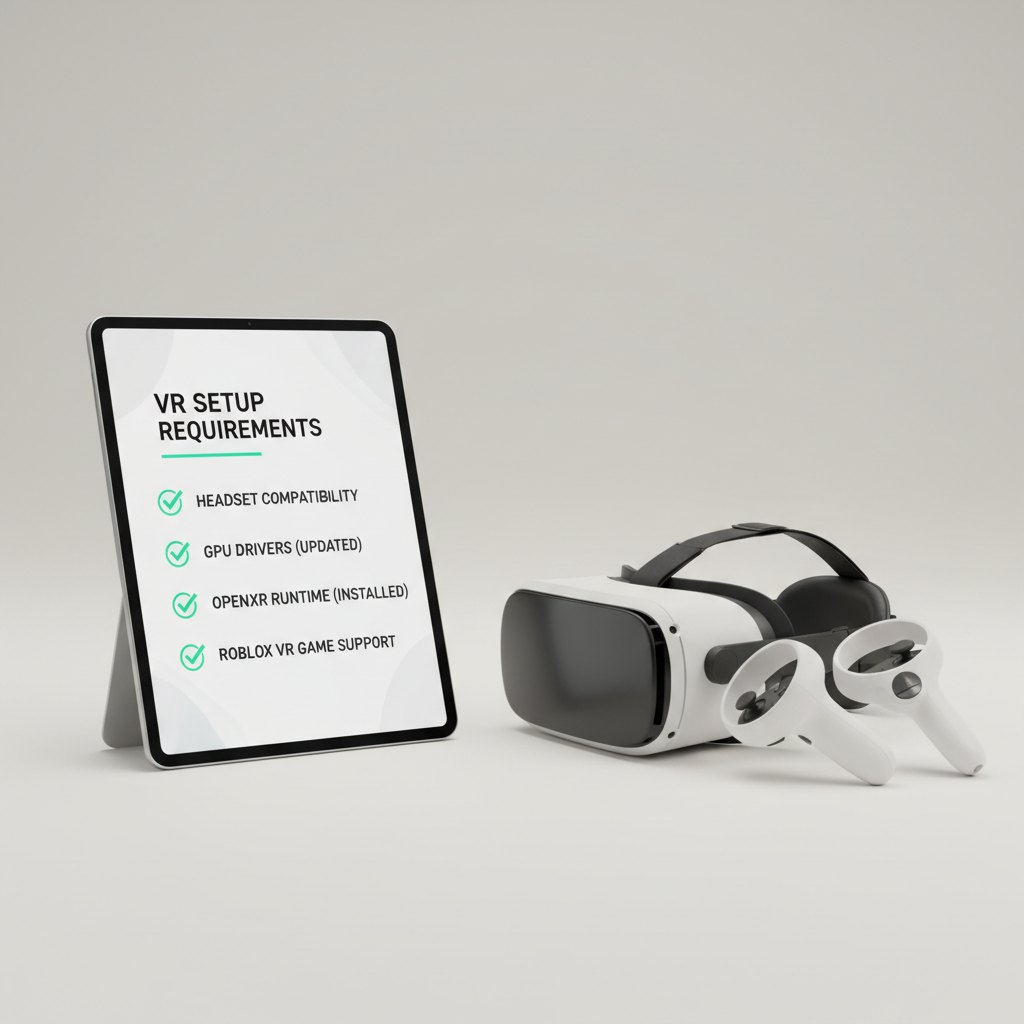
This is the most straightforward route when you have a VR-ready PC and a wired/wireless PC VR headset. The goal is simple: get your VR runtime stable, then launch a VR-supported Roblox experience.
1) Prep your VR runtime (SteamVR/OpenXR)
- Install and open Steam and SteamVR (if your headset uses it).
- Confirm your headset shows “Ready” in the VR dashboard.
- If you see OpenXR options in your VR software, set the active runtime to the one your headset expects.
According to Microsoft (OpenXR guidance), OpenXR works as a standard for VR/AR app access to headsets, and mismatched runtimes can cause apps to launch flat or fail to enter VR mode.
2) Launch Roblox the way that triggers VR
- Put the headset on, keep SteamVR running.
- Open Roblox via the browser or Roblox Player, then start a VR-supported experience.
- If it launches on desktop only, close it, confirm VR runtime is active, then try again.
3) Fix your controls and comfort settings early
- In the experience settings, look for VR comfort options: smooth locomotion vs teleport, snap turn, vignette.
- Set height/scale correctly if the world feels “off.” Many experiences include a recalibrate option.
Comfort matters. If you feel motion sickness, reduce movement speed, use teleport, and take breaks. If symptoms persist, it may be worth asking a medical professional, since susceptibility varies by person.
Step-by-step: Play Roblox in VR on Meta Quest (Link/Air Link or streaming)
If your goal is how to play roblox in vr 2026 on Quest, the “secret” is that the headset often acts like a VR display while the PC does the heavy lifting.
Option A: Quest with Link (cable)
- Connect Quest to PC with a quality USB-C cable that can handle stable bandwidth.
- Enable Link on the headset, then confirm you’re in the PC VR environment.
- Open SteamVR (if needed), then launch a VR-supported Roblox experience from the PC.
Option B: Quest with Air Link (wireless)
- Use strong Wi‑Fi with the router near the play space when possible.
- Prefer a less congested band (many setups do better when the VR stream has “room” to breathe).
- Lower bitrate if you see stutters, frame drops, or audio glitches.
Option C: Virtual Desktop (wireless streaming)
- Install Virtual Desktop on Quest and its streaming app on PC.
- Pick a balanced codec/bitrate preset, then adjust up only after stability looks good.
- Launch the Roblox experience from your streamed desktop while the VR runtime is active.
Wireless VR is very sensitive to the local network. If performance swings wildly, the fix is often “network hygiene,” not Roblox settings.
How to tell if a Roblox experience actually supports VR
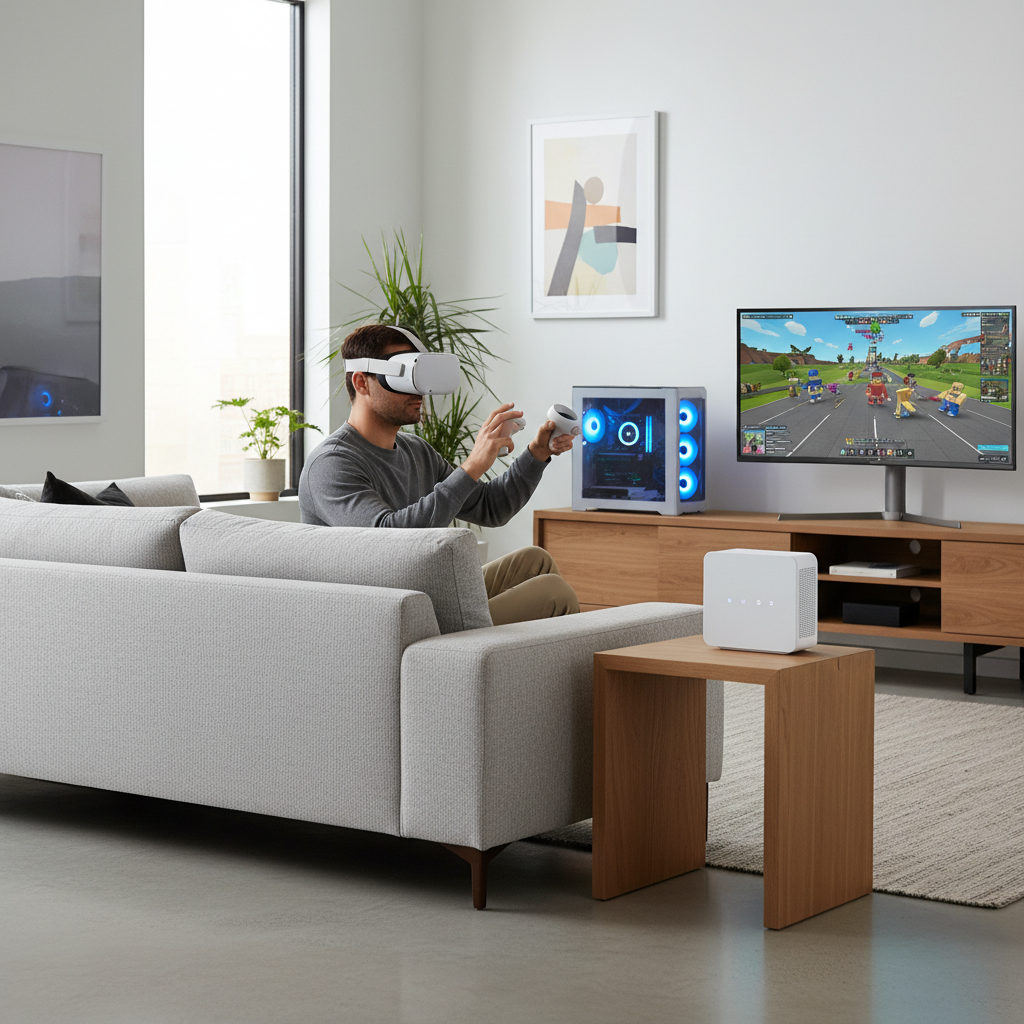
A surprising amount of time gets wasted trying to force VR into an experience that never implemented it. Here are practical signs that a game is VR-capable.
- The experience page mentions VR, or the community consistently reports VR support.
- You see VR-specific settings after joining (comfort options, controller mappings, recenter).
- Your headset switches into VR view rather than showing a flat “screen in VR.”
If you’re unsure, test with a known VR-capable Roblox experience first. Once your pipeline works on one title, troubleshooting becomes about that specific game, not your whole setup.
Troubleshooting: when it launches flat, lags, or controllers don’t map
Most issues fall into a few buckets. Don’t change ten settings at once; pick the symptom and follow the smallest set of fixes.
If Roblox launches in 2D (flat screen)
- Confirm the experience supports VR, then fully close Roblox Player and relaunch.
- Open your VR runtime first (SteamVR/OpenXR environment), then start Roblox.
- Check which OpenXR runtime is active in your headset software.
If you get stutter, lag, or “rubber band” movement
- Lower resolution scale or refresh rate in the headset app.
- Close GPU-heavy background apps (recording overlays, browser tabs with video).
- For wireless streaming, reduce bitrate and move closer to the router.
If controllers feel wrong or inputs don’t respond
- Look for an in-game VR controls menu and remap if the experience allows it.
- Update headset firmware and controller software.
- Try another VR-supported Roblox experience to separate “game-specific” from “system-wide.”
According to Meta (Quest support guidance) and Valve (SteamVR support), keeping firmware, runtimes, and drivers current is a baseline step for resolving tracking and stability problems.
Practical tips for comfort, safety, and better sessions
VR is fun, but it can also feel rough if you jump straight into fast movement. A few small habits make a big difference.
- Set boundaries and clear the play area, especially for room-scale experiences.
- Start with teleport or snap turning if smooth locomotion makes you nauseous.
- Use short sessions until your comfort builds, and stop if you feel dizzy.
- Mind your headset fit, too tight causes headaches, too loose hurts tracking.
Many people try to “push through” discomfort, that usually backfires. If you have migraines, vestibular issues, or other health concerns, it’s reasonable to ask a clinician what limits make sense for you.
Conclusion: the simplest way to get Roblox VR working in 2026
If you want the cleanest path, treat how to play roblox in vr 2026 like a pipeline: verify the experience supports VR, get your VR runtime stable, then launch Roblox from that ready state. When something breaks, troubleshoot by symptom, not by random settings.
Action steps that usually pay off fast: pick one known VR-supported experience as your test case, update GPU drivers and headset firmware, then lock in a stable wired or wireless setup before chasing higher quality settings.