
how to factory reset meta quest 3 is usually the fastest way to fix stubborn glitches, clear personal data before selling, or start over after a setup mistake.
That said, a factory reset is a “point of no return” move for what’s stored locally on the headset, so it’s worth taking two minutes to check what will be deleted, what can be backed up, and which reset method fits your situation.
People often reset for the wrong reason, like trying to fix Wi‑Fi or controller pairing issues that can be solved without wiping everything. I’ll walk you through quick checks, two reliable reset methods, and a short post-reset checklist so you can get back in fast.
What a Factory Reset Actually Does (and What It Doesn’t)
A factory reset restores your Meta Quest 3 to “out of the box” software state. In plain terms, it removes local data and disconnects the headset from your account on that device.
- Erases on-headset content: installed apps, local game data, downloaded media, Wi‑Fi passwords, paired devices.
- Removes local profiles: the headset won’t remember the accounts that were signed in.
- Does not cancel purchases: your app library stays tied to your Meta account, you can re-download after signing in.
- Cloud saves vary: some games sync progress, some don’t, and sometimes sync needs a clean online connection first.
According to Meta, a factory reset is intended for troubleshooting and for removing your personal data before transferring ownership. In practice, that second use case is where people most regret skipping prep.
Before You Reset: 10-Minute Prep That Prevents Regret
If you’re resetting because the headset feels “buggy,” do these quick things first. They often solve the problem without wiping everything.
- Restart first: hold the power button, choose Restart, then test again.
- Charge to 50%+: a reset during low battery can create extra setup friction later.
- Connect to stable Wi‑Fi: important for any last-minute cloud sync.
- Check for updates: sometimes the issue is fixed by a system update.
If you’re resetting to sell or gift the headset, prep changes a bit.
- Remove accounts on the device: factory reset handles this, but you still want to confirm later via your account settings.
- Back up media: copy photos/videos off the headset if you care about them.
- Note your unlock pattern/PIN: if you’re locked out, you’ll likely need the hardware reset method below.
Quick Decision Table: Which Reset Method Should You Use?
There are two common ways to do it. Choose based on access: can you get into Settings, or are you stuck at a lock screen or boot loop?
| Situation | Best Method | Why |
|---|---|---|
| You can open Settings normally | Reset from headset Settings | Fastest, lowest risk, no button combos |
| You’re locked out (pattern/PIN), or headset won’t boot cleanly | Hardware reset (boot menu) | Works even without access to the OS |
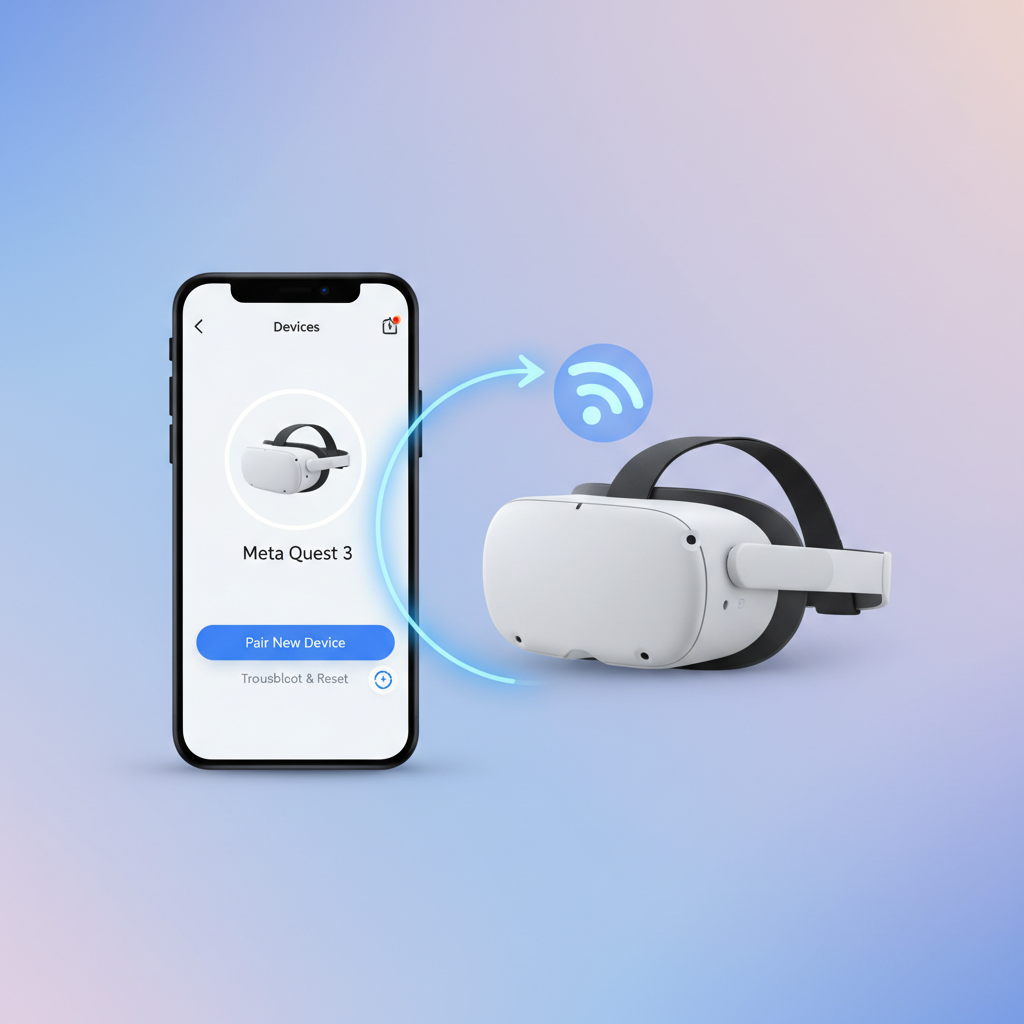
| You prefer doing it from your phone and the device is linked | Meta Quest mobile app reset | Convenient when the headset UI is sluggish |
Method 1: Factory Reset Meta Quest 3 from Headset Settings
If you still have normal access, this is the most straightforward route. Menu labels can shift slightly between software versions, but the structure stays similar.
Steps
- Put on the headset, open the universal menu.
- Go to Settings.
- Find the section for System (or a similar “Device” area).
- Look for Reset or Factory reset.
- Confirm the prompts, then wait while the headset wipes and reboots.
Give it time. If it sits on a logo screen longer than you expect, that can still be normal for a reset, especially if the storage was nearly full.
Method 2: Factory Reset Meta Quest 3 Using the Hardware Buttons (Boot Menu)
If you can’t enter Settings, this is the method that usually saves the day. It’s also the one people mess up by releasing buttons too early.
Steps
- Power off the headset completely (hold power until it shuts down, not just sleep).
- Press and hold Power and Volume Down together until the boot menu appears.
- Use the volume buttons to move through options.
- Select Factory reset (wording may appear as “wipe data/factory reset”).
- Press the power button to confirm selection.
- Confirm the final prompt, then wait for the reboot.
If the boot menu never appears, try again with a slower, firmer button press and make sure the headset is fully powered off. Also, a very low battery can make this feel inconsistent, charging first helps.
After the Reset: A Practical Setup Checklist
Once the reset finishes, treat it like a fresh device. This is where most “reset didn’t work” complaints actually come from, the reset worked, but setup steps were rushed.
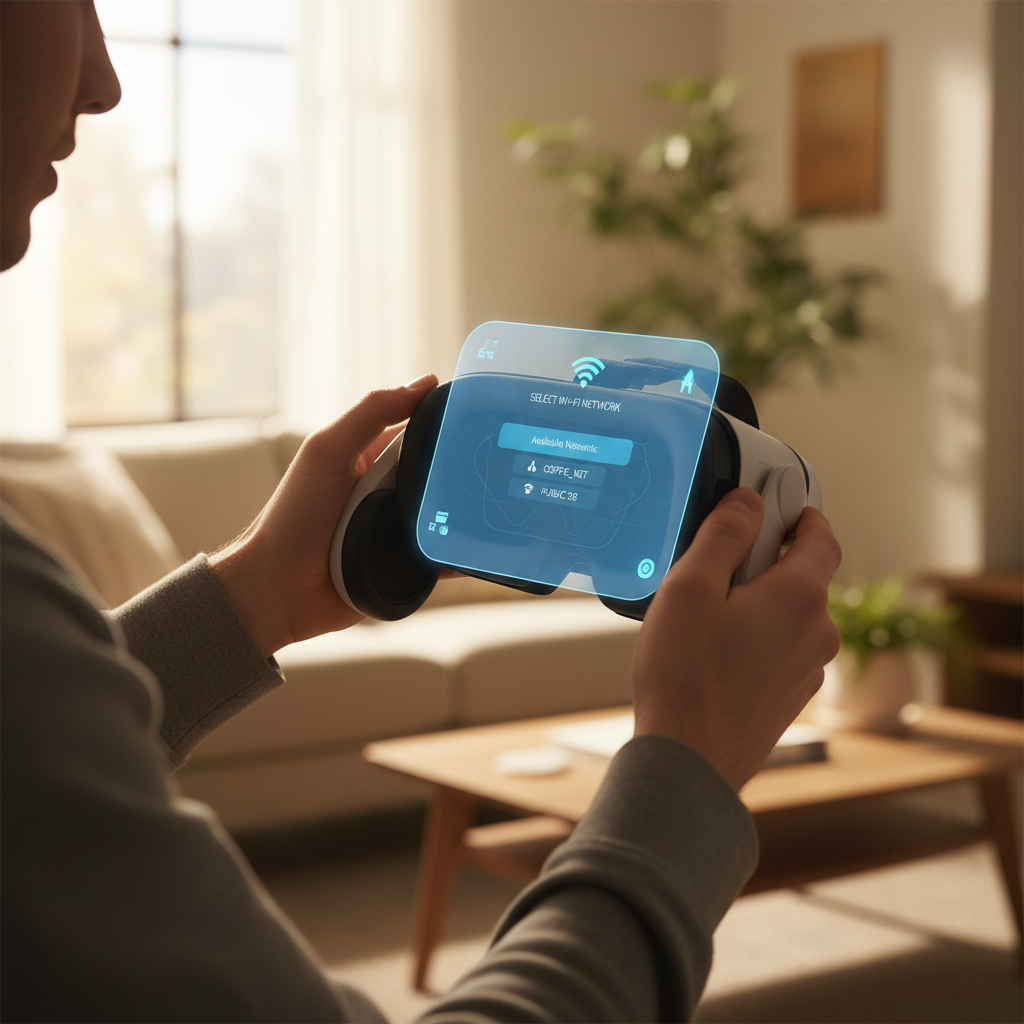
- Connect to Wi‑Fi and let initial updates complete before installing a bunch of apps.
- Sign in to the correct Meta account so your library appears.
- Pair controllers again, and update controller firmware if prompted.
- Install one or two apps first to confirm downloads work normally.
- Verify cloud saves per game: open a game you care about and confirm progress looks right.
If you reset to sell or give it away, stop after the initial “welcome” screen. Don’t sign back in. The next owner should complete setup with their own account.
Common Mistakes and Troubleshooting (What Usually Goes Wrong)
A factory reset is simple, but a few patterns show up repeatedly.
- Assuming every game has cloud save: some titles rely on local storage, so progress may not return after reset.
- Resetting to fix controller drift: drift can be hardware-related; a reset might not change anything.
- Not updating after reset: performance issues can stick around if you skip system updates and jump straight into apps.
- Signing into the wrong account: then it looks like purchases vanished, when they’re just on a different login.
If you’re still stuck
- Try a second restart after setup updates finish.
- Confirm your Wi‑Fi isn’t blocking downloads (some work networks and guest networks do).
- Re-pair controllers and re-run boundary setup.
When You Should Contact Support (Instead of Re-Resetting)
If you’ve repeated how to factory reset meta quest 3 and the headset still fails setup or keeps boot looping, it’s usually time to stop looping the same fix and get help.
- Persistent boot loop even after a clean hardware reset.
- Overheating warnings or sudden shutdowns after setup, which can be hardware or environment related.
- Battery won’t charge or the headset cannot stay powered on long enough to complete setup.
According to Meta, official support channels can help with device-level diagnostics and warranty options. If your headset is under warranty or recently purchased, contacting support early can save time versus repeated resets.
Key Takeaways (If You Only Remember a Few Things)
- Reset from Settings when you still have access, use the boot menu when you don’t.
- Backups are not universal, check cloud save expectations before wiping.
- Updates after reset matter, let the headset finish setup and system updates before judging performance.
- Selling it? Reset, then stop at the welcome screen so the next person can sign in.
Conclusion: Reset with a Plan, Not Out of Frustration
If you came here wondering how to factory reset meta quest 3, the main choice is simple: use Settings when you can, use the hardware boot menu when you can’t. The part that makes the difference is the prep and the after-reset checklist, especially if you care about saves or you’re handing the headset to someone else.
Pick the method that matches your situation, take a minute to back up what matters, then do one clean reset and a careful setup, that’s usually the shortest path back to a smooth Quest 3 experience.