
how to use steam remote play together comes down to one simple idea: one person runs the game on their PC, and friends join as “virtual couch co-op” players over the internet, even if they don’t own the game.
If you’ve ever tried to play a local co-op title with friends who live elsewhere and ended up stuck on controller detection, audio echo, or lag, you’re not alone. Remote Play Together can feel magical when it works and weirdly fragile when one setting is off.
This guide focuses on practical setup, what each player needs, and the fixes that usually matter most. I’ll also call out common misconceptions, like thinking it works for every multiplayer game, or assuming your friend must buy the title.
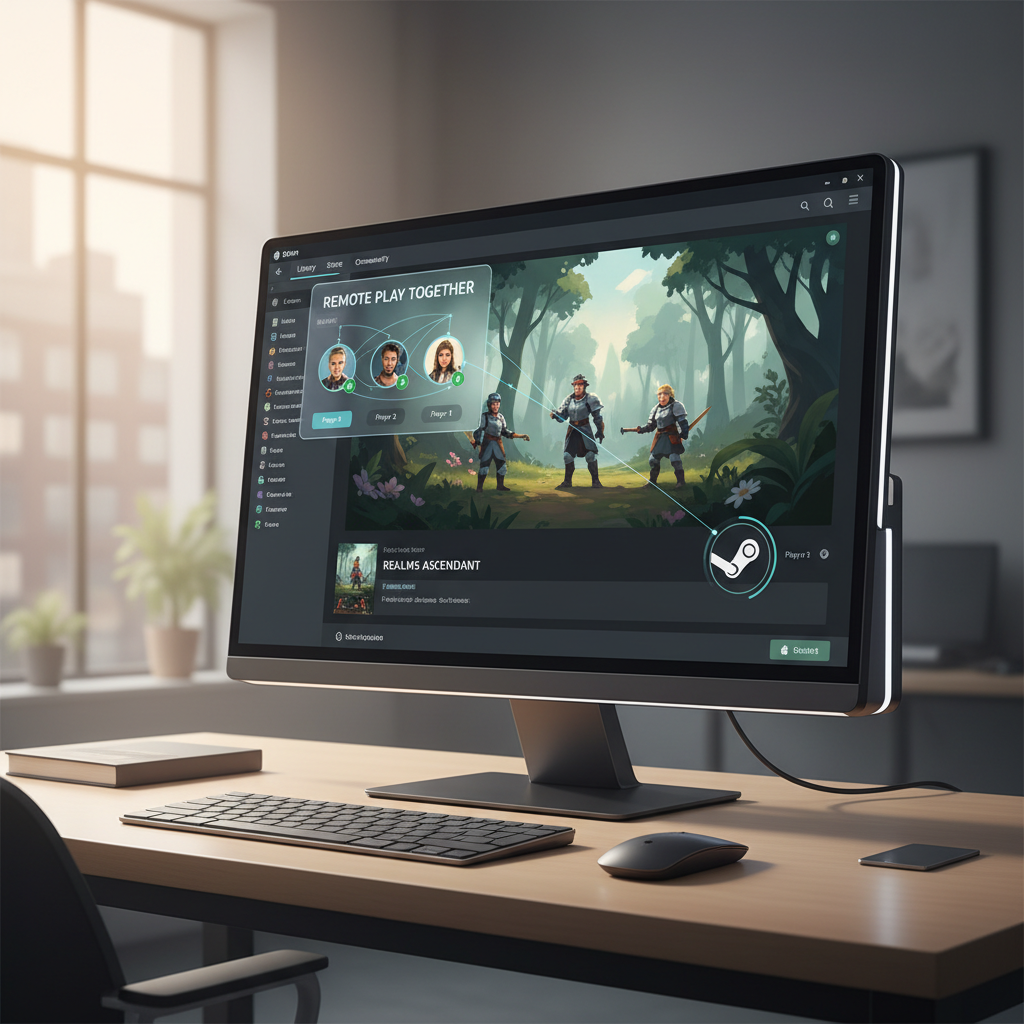
What Steam Remote Play Together actually does (and what it doesn’t)
Remote Play Together streams your game video and audio to invited friends, then sends their controller or keyboard inputs back to the host PC. So the host machine does the heavy lifting, your friends are basically “plugged in” remotely.
It usually works best for local multiplayer games that already support split-screen or shared-screen co-op on one computer. If a game only supports online multiplayer via its own servers, Remote Play Together might not add anything.
- Host needs: the game installed, Steam running, stable upload speed, and enough CPU/GPU headroom.
- Guests need: Steam account, decent download speed, and a controller or keyboard setup that Steam can read.
- Not required: guests buying the game in many cases, because they’re joining your stream.
According to Valve (Steam Support), Remote Play Together lets you invite friends to join local multiplayer games over the internet, even if they don’t own the game. That “local multiplayer” detail matters more than people expect.
Quick checklist: are you a good candidate for Remote Play Together?
Before you troubleshoot for an hour, do a quick reality check. Many sessions fail for predictable reasons: the game isn’t truly local co-op, the host upload can’t keep up, or inputs get mapped wrong.
- Your game supports local co-op on one PC (shared screen or split-screen).
- Host upload is stable (wired Ethernet helps more than people want to admit).
- Host PC runs the game smoothly even before streaming.
- Everyone can sign into Steam and can use Steam Overlay features.
- Controllers are recognized locally on each guest device (or they’re comfortable using keyboard).
If you’re missing two or more items, Remote Play Together may still work, but you’ll want to start with lower expectations and more conservative settings.
How to use Steam Remote Play Together step-by-step (host and guests)
This is the flow that tends to work with the least drama. The host drives most of the setup, guests mostly just accept and configure their input.
On the host PC
- Open Steam, go to Steam > Settings > Remote Play, and ensure Enable Remote Play is on.
- Launch the game (or keep Steam open in your Library).
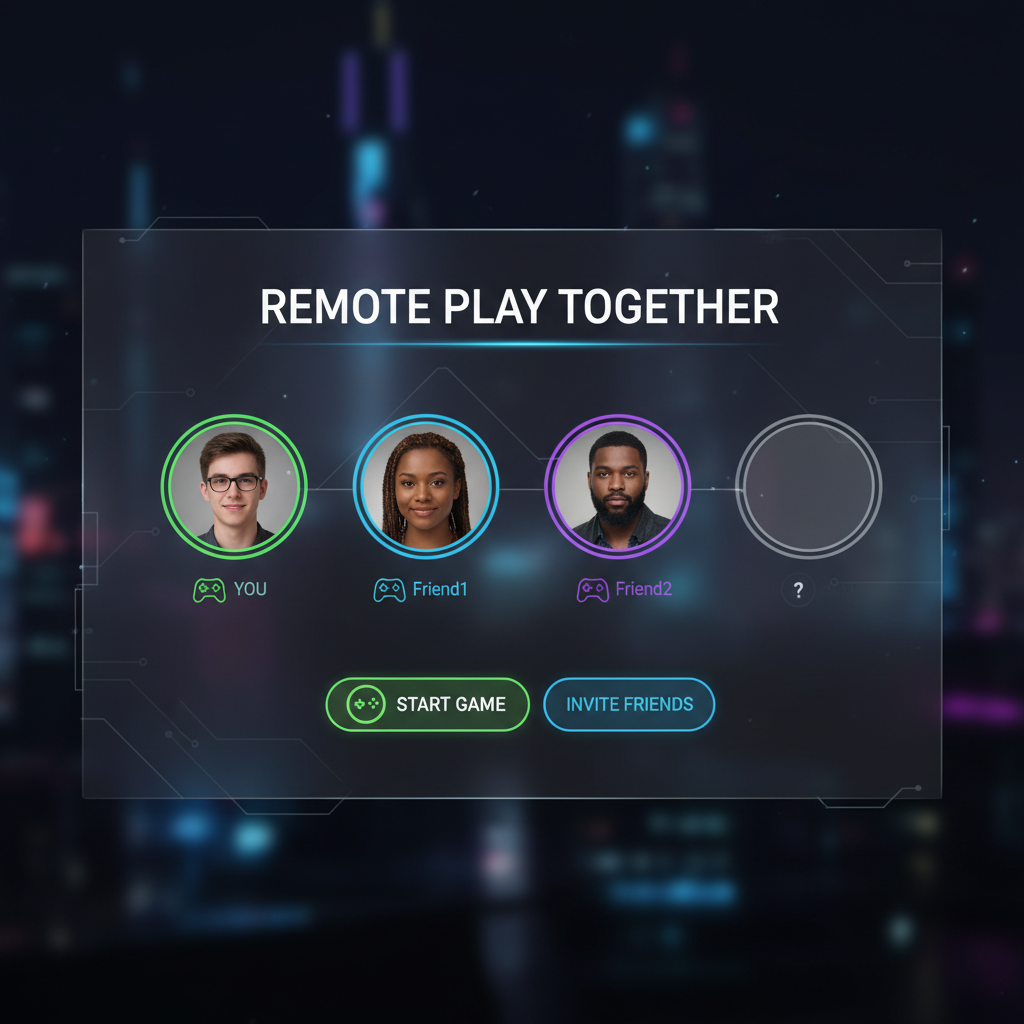
- Open your Friends List, right-click a friend, choose Remote Play Together (or use the in-game Steam Overlay to invite).
- Once they join, open the Remote Play overlay and verify their input device appears.
On the guest side
- Accept the invitation in Steam.
- Plug in a controller (recommended) or confirm keyboard/mouse works for the title.
- If input feels wrong, open the invite overlay controls and adjust controller assignment.
Key point: if you’re learning how to use steam remote play together for the first time, test with a simple local co-op game before you attempt something finicky, like a title with custom launchers or anti-cheat quirks.
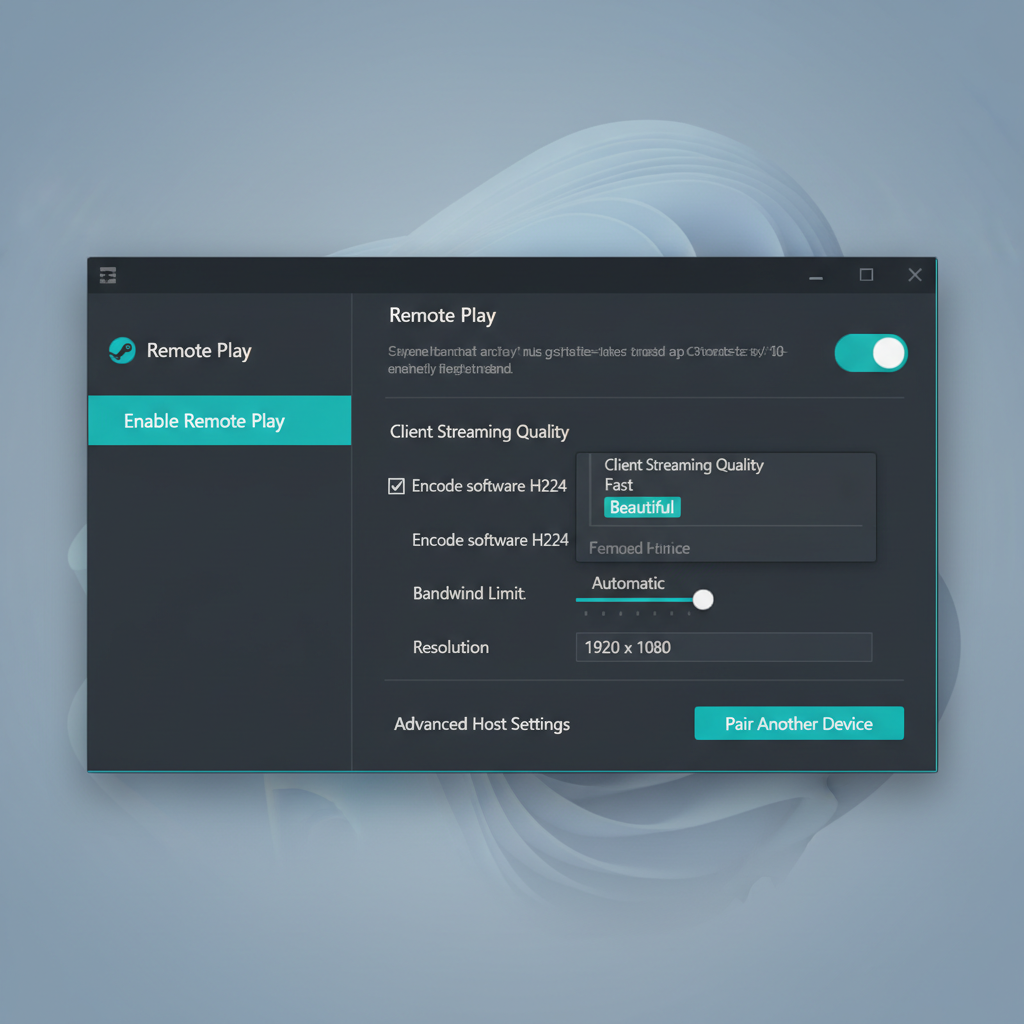
Best settings for smoother play (quality vs latency)
Most problems people call “Remote Play is broken” are really “bitrate too high for the host upload” or “Wi‑Fi jitter.” The right settings depend on what you care about more: sharp video or fast inputs.
Here’s a practical starting point you can adjust in minutes.
| Goal | Host recommendation | Why it helps |
|---|---|---|
| Lowest input lag (action games) | Lower resolution, limit FPS, prioritize performance preset | Less data to encode and send, faster response |
| Best image quality (turn-based, party games) | Higher resolution, balanced preset, moderate bitrate | More detail without overwhelming upload |
| Stability on shaky internet | Cap bitrate, avoid 4K, use wired Ethernet if possible | Reduces spikes that cause stutter and audio drops |
- Wired beats Wi‑Fi for the host. If only one side can wire up, make it the host.
- If voices echo, keep game audio in Steam and voice chat in a separate app (or use push-to-talk).
- If the game is already near 100% GPU usage, streaming can push it over the edge; lower in-game settings first.
According to Valve (Steam Support), Remote Play performance depends on network conditions and system performance, and adjusting streaming quality can improve results. Translation: don’t treat default settings as sacred.
Input and controller sharing: the part that trips people up
The most common complaint is “my friend can’t control anything” or “we’re controlling the same character.” That usually comes from controller order, Steam Input mapping, or the game only recognizing one device.
- Use the Remote Play overlay to assign controllers to players. If the guest is controlling Player 1, swap order.
- Disable extra devices temporarily (flight sticks, racing wheels, virtual controllers) so the game detects fewer inputs.
- Try Steam Input if a controller isn’t detected. Steam can translate many controllers into an Xbox-style layout games understand.
- Keyboard sharing is real, and that can be messy. Many games assume one keyboard equals one player.
If you’re still stuck, pick one “known-good” setup: host on keyboard/mouse, guests on controllers. That combination tends to be the least ambiguous for most local co-op titles.
Troubleshooting: fixes that actually work in real sessions
When Remote Play Together fails, the error message rarely tells you the real cause. These are the checks that solve most sessions without turning it into a weekend project.
Connection and stutter
- Host upload is the bottleneck more often than the guest download. Lower bitrate and resolution first.
- Close background uploads on the host (cloud backups, game downloads, video calls).
- Restart Steam on both sides if the invite connects but inputs never arrive.
Black screen, no audio, or audio out of sync
- Toggle hardware encoding in Steam Remote Play settings if you see a black screen on join.
- Change the host audio device (headset vs speakers). Some setups latch onto the wrong output.
- If audio drifts, reduce streaming quality a notch; high CPU load can cause desync.
Invite issues
- Confirm both accounts appear online and can open Steam Overlay.
- Check if the game uses a separate launcher that blocks overlay features.
- If a guest is on a restricted network (school/work), a different network may be necessary.
Key takeaway: if you’re trying to figure out how to use steam remote play together and it “kind of works,” don’t keep pushing the same settings harder. Drop quality, simplify input devices, then build back up.
Practical playbook: a 10-minute setup that reduces headaches
This is the routine that tends to keep Remote Play Together sessions smooth, especially with mixed hardware.
- Pick the right game: start with a proven local co-op title, not a borderline case.
- Host runs a quick performance check: can the game hold stable FPS in the busiest scene?
- Host uses Ethernet: if you can’t, at least get close to the router.
- Invite one friend first: confirm they can see video, hear audio, and control something.
- Add players one at a time: fix controller assignment as you go.
- Agree on voice chat: Steam voice or Discord, but avoid double-monitoring that causes echo.
It’s a little unglamorous, but it beats spending your whole “game night” in settings menus.
When you should consider another option (or get help)
Remote Play Together is a great fit for casual co-op and party games, but it’s not always the right tool.
- If you need competitive-grade latency, native online multiplayer typically feels better.
- If the host internet upload is consistently weak, cloud gaming or a different host might be more reliable.
- If you hit repeatable crashes tied to specific hardware encoders or drivers, updating GPU drivers is reasonable, and in stubborn cases a PC technician might help you rule out system issues.
According to Valve (Steam Support), Remote Play features may behave differently across devices and networks. If you’ve tried the basics and it still fails, Steam Support documentation and community discussions can be more useful than random “one weird trick” fixes.
Conclusion: make it feel like couch co-op again
Once you understand how to use steam remote play together, the wins are simple: choose a true local co-op game, keep the host stable, and treat controller assignment as part of the setup, not an afterthought.
If you want an easy next step, try one test session with a single friend using conservative streaming settings, then scale to a full group after you confirm audio, video, and inputs behave.
FAQ
Do my friends need to own the game to join Remote Play Together?
In many cases, no. The host is streaming the game, and guests join the session through Steam. Some titles or launchers may behave differently, so it’s worth testing before planning a big session.
Why does Remote Play Together work for some games but not others?
It tends to work best when the game already supports local multiplayer on one PC. If a title is online-only or blocks overlays, invitations or input sharing can be limited.
What internet speed do I need for a smooth experience?
It varies by resolution and bitrate, but the host’s upload stability matters most. If the stream stutters, lowering bitrate and using Ethernet on the host usually helps more than upgrading the guest side.
How do I fix controller issues where both players control the same character?
Open the Remote Play overlay and check controller assignment order. Unplug extra controllers and disable virtual devices if the game keeps picking the wrong input.
Can we use keyboard and mouse for multiple players?
Sometimes, but many local co-op games assume one keyboard equals one player. A more reliable approach is host on keyboard/mouse and guests on controllers.
Why is there audio echo when we talk?
Echo usually comes from someone monitoring game audio and voice chat through speakers. Headsets help, and using one voice app (not two) reduces feedback loops.
Is Remote Play Together safe to use?
For most users it’s a standard Steam feature, but sharing input always deserves basic caution. Only invite people you trust, and avoid entering sensitive passwords while others have shared control.
If you’re trying to set up a recurring “online couch co-op” night and want it to feel consistent, it can help to standardize your host settings and controller setup so you’re not re-learning how to use steam remote play together every time you launch a different game.